
In Brand Studio, precision is a core pillar of our creative operations. Our suite of editing tools enables you to move beyond basic generation into professional-grade asset refinement, transforming initial concepts into production-ready assets. These tools automate high-friction tasks like masking, recoloring, and reframing, allowing you to maintain structural integrity and brand consistency across every project
1. Isolating Subjects: Remove & Replace Background
Definition: These tools use depth-estimation models to identify the primary subject and either remove the background entirely or swap it for a new generative environment.
Why it matters:
- Asset Reuse: Quickly isolate products for design systems or templates.
- Scale: Generate dozens of lifestyle variations from a single studio shot, reducing the need for expensive location shoots.
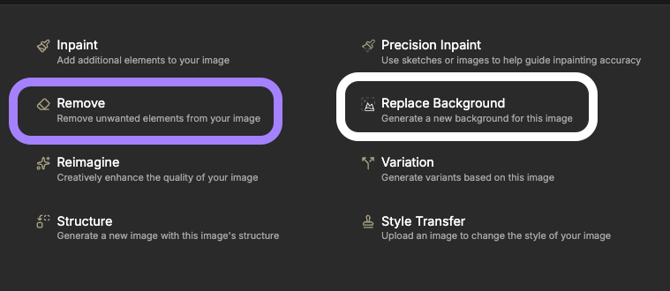
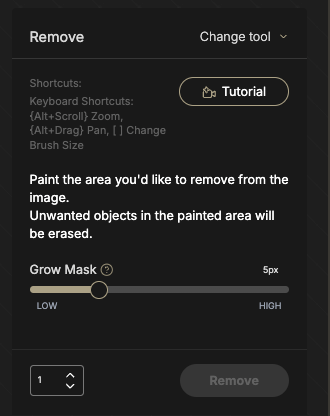
How to Use Remove Background
- Selection: Upload your image or select an asset from your Library.
- Action: Navigate to the editing menu and select Remove Background.
- Process: The system uses depth-estimation to identify and isolate the subject closest to the camera.
- Result: Download the subject as a transparent PNG for use in compositing or asset libraries.
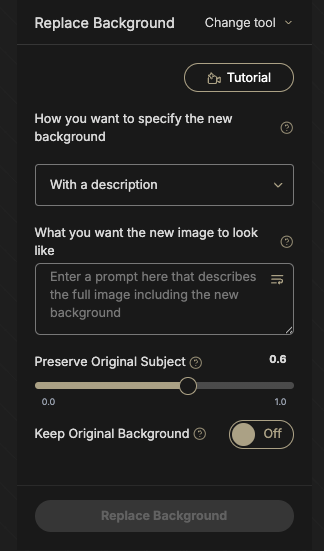
How to Use Replace Background
- Selection: Select an input image from your Library.
- Action: Select Replace Background to initialize the generative pipeline.
- Environment Direction: Define your new scene by entering a text prompt or uploading a reference image.
- Lighting Harmony: Use the Relighting Slider (0.0 to 1.0 scale) to adjust the subject's lighting to match the new background.
- Optimization: We recommend a range of 0.1 to 0.4 to maintain realism; lower values allow for more aggressive lighting shifts to fit the new scene, while higher values preserve the original subject's appearance.
2. Localized Edits: Inpainting (Edit with Masks)
Definition: A manual masking tool that allows you to modify specific regions of an image while leaving the rest untouched.
Why it matters:
- Correction: Fix defects, repair distortions, or adjust facial features and hands without re-generating the entire asset.
- Design Iteration: Swap accessories or props to test different creative directions.
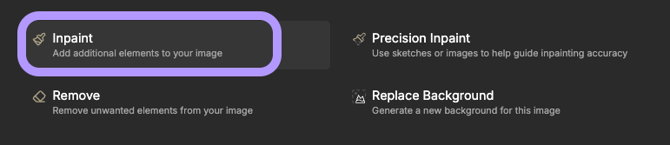
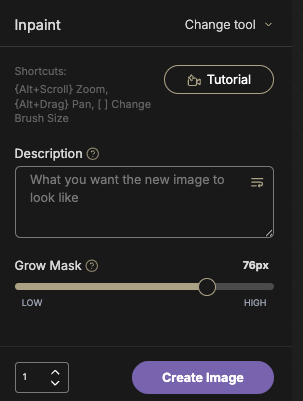
How to use it:
- Open the Edit menu and select the Inpainting interface.
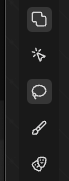
- Use the Brush or Lasso tool to mask the area you want to change.
- Enter a focused, specific text prompt describing the desired change.
- Increase the Mask Grow Radius (blur) for smoother blending with the original pixels.
3. Automated Swaps: Search and Replace (Replace Items)
Definition: A text-driven pipeline that automatically identifies an object in your scene and replaces it with another.
Why it matters:
- SKU Management: Update product packaging or swap props across high volumes of campaign assets without manual masking.
- Efficiency: Simplifies complex edits for users without advanced technical skills.
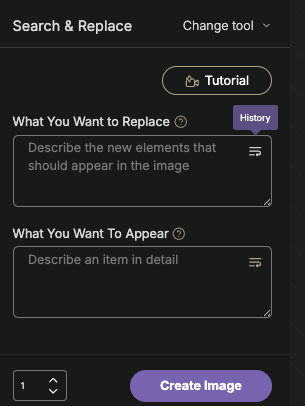
How to use it:
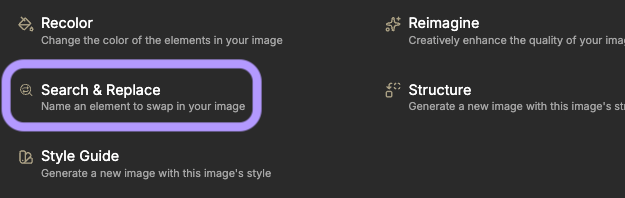
- Select Search and Replace from the sidebar.
- In the Search field, type the noun of the object you want to find (ex. sunglasses).
- In the Replace field, type the new object (ex. VR headset).
- Generate to see the new item integrated with the original's lighting and perspective.
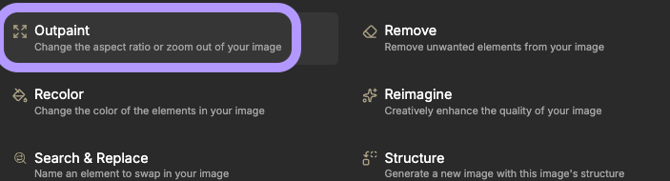
4. Canvas Extension: Outpaint (Expand and Reframe)
Definition: This tool extends the boundaries of an image, using generative context to fill new space while matching the original style and texture.
Why it matters:
- Multi-Channel Optimization: Convert a 1:1 asset into a 9:16 vertical video for social or a 21:9 banner for web headers.
- Copy Space: Create clean, negative space for typography and UI overlays.
How to use it:
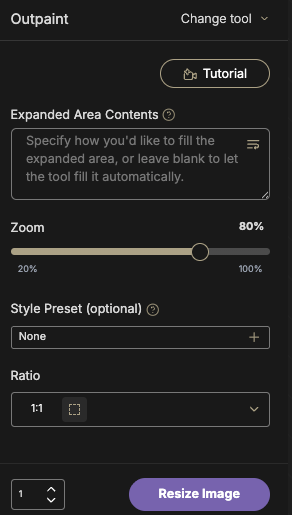
- Select the Outpaint or Expand tool.
- Drag the canvas handles to your desired aspect ratio.
- Update the prompt to describe the expanded environment (ex. add vast garden to a portrait prompt).
- Generate, then use Inpainting to fix any visible seams if necessary.
Precision Recommendations
- Start with Quality: Depth-based tools perform best when subjects are clearly closer to the camera than the background.
- Fix Before Scaling: Always repair small defects (like hands or faces) using Inpainting at standard resolution before using the Upscale tool.
- Iterate Incrementally: When expanding a canvas with Outpaint, expand in small steps (25-50% at a time) to maintain visual continuity.