
Maintaining a consistent look is the biggest challenge when creating a large volume of images. Brand Studio uses specific tools to make sure every result follows your brand’s style rules.
What it is
Branding consistency means making sure every image you create uses the right colors, lighting, and accurate products. This is a deliberate process where you use saved settings and specific tools to keep your brand looking uniform across every project.
Why it matters
When you need to create many images, it is easy for the style to change over time.
- Follow Brand Rules: It helps your whole team create images that match your official guidelines.
- Protect Your Assets: Using private project folders and custom models keeps your proprietary brand assets separate and secure.
- Match Your World: Using the same style settings ensures that every image in a project feels like it belongs in the same environment.
- Save Time and Money: You can create sets of images for different ads or regions without the cost of a physical photoshoot for every variation.
How to use it
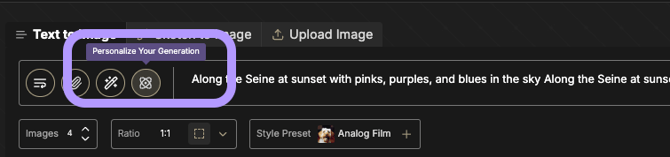
- Use Brand Personalization: Click the Personalization icon (the atom) to select your custom product model. Note: This feature is a purchasable add-on for Enterprise customers and is set up as a managed service for your team.
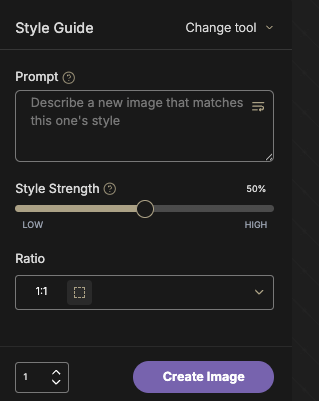
- Anchor with Style Guides: Upload a Standard Reference image to the Style Guide tool (swatch icon). The system extracts your brand's specific color palette and light source positions for every new generation.
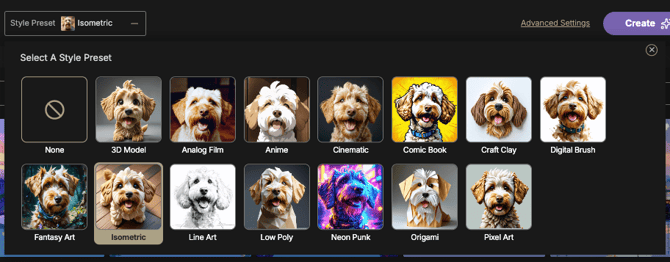
- Pick a Style Preset: Choose a preset like Cinematic or Isometric to give all your images the same professional look without extra typing.
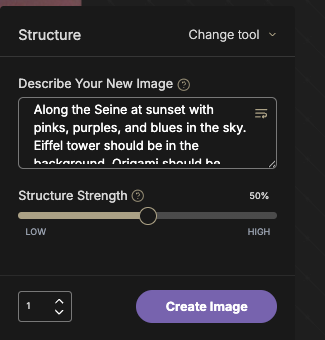
- Guide the Layout: Use the Structure tool to tell the system exactly where subjects should be placed in the frame.
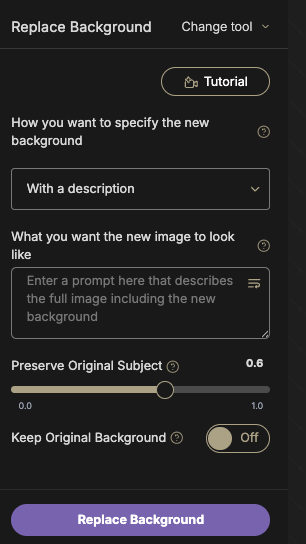
- Blend the Lighting: When you replace a background, use the Preserve Original Subject slider to make sure your product matches the new environment.
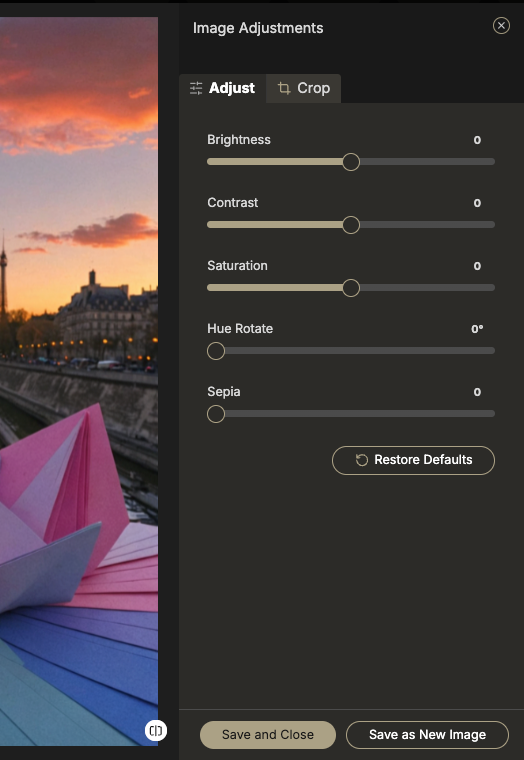
- Fine-tune the Result: Open the Image Adjustments panel to manually change the Brightness, Contrast, and Saturation for a perfect brand match.
Best Practices for Brand Visual Identity
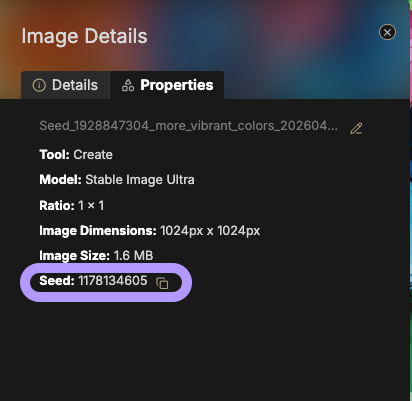
- Isolate Style with Seed Locking: If you find an image that you love and want to replicate the look or feel of, use the seed number in the prompt to guide the generation process. This isolates the aesthetic shift from random noise, allowing you to see exactly how your brand’s visual signature is being applied across identical compositions.
- Prioritize PNG for Source Fidelity: Always use PNG files for your uploaded brand assets. Unlike JPEGs, PNGs prevent compression artifacts from being misinterpreted by the system as intended texture, which is critical for maintaining the high-fidelity surfaces of your products.
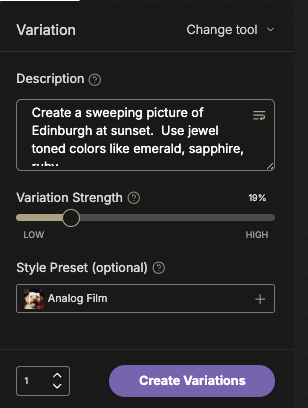
- Walk the Model for Complex Assets: Use recursive variations to achieve precision. If a result is close but not perfect, run a Variation on that specific image to slowly walk the AI toward your desired brand look in small, controlled steps rather than making one large, unpredictable change.
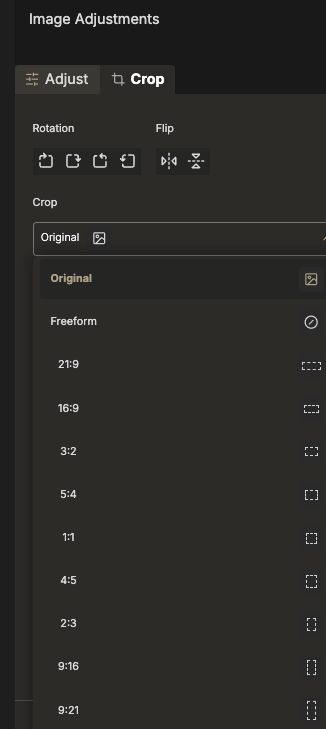
- Maximize Your Pixel Budget: Match your aspect ratio to your final delivery format (e.g., 9:16 for mobile or 16:9 for web) before you start the process. This ensures the AI allocates maximum detail to your subject within the frame and avoids lossy cropping later that can degrade your brand's visual quality.
- Align Subject to Frame: Choose an aspect ratio that complements your brand's typical imagery. Vertical ratios are superior for full-body fashion or standing subjects, while horizontal ratios are best for expansive environments or vehicle shots.